In short
- MCP is a universal plug that connects an AI assistant to the apps you already use.
- Connected, the assistant stops guessing and works with your real emails, files, calendar and clients.
- Start with one or two read only connections you use every day, such as email and calendar.
- Grant only the access a task needs, and use connectors from the app maker or a source you trust.
On this page
Most people use AI assistants like a very smart stranger: you paste in some text, it gives you a good answer, and then it forgets everything. It cannot see your inbox, your calendar, your client list or your files, so you spend half the time copying things in and out.
MCP changes that. It is the reason an assistant can now say “you have three unanswered emails from the Johnson project, and their site visit is tomorrow at 10” instead of “I do not have access to your email”.
What MCP is, in one paragraph
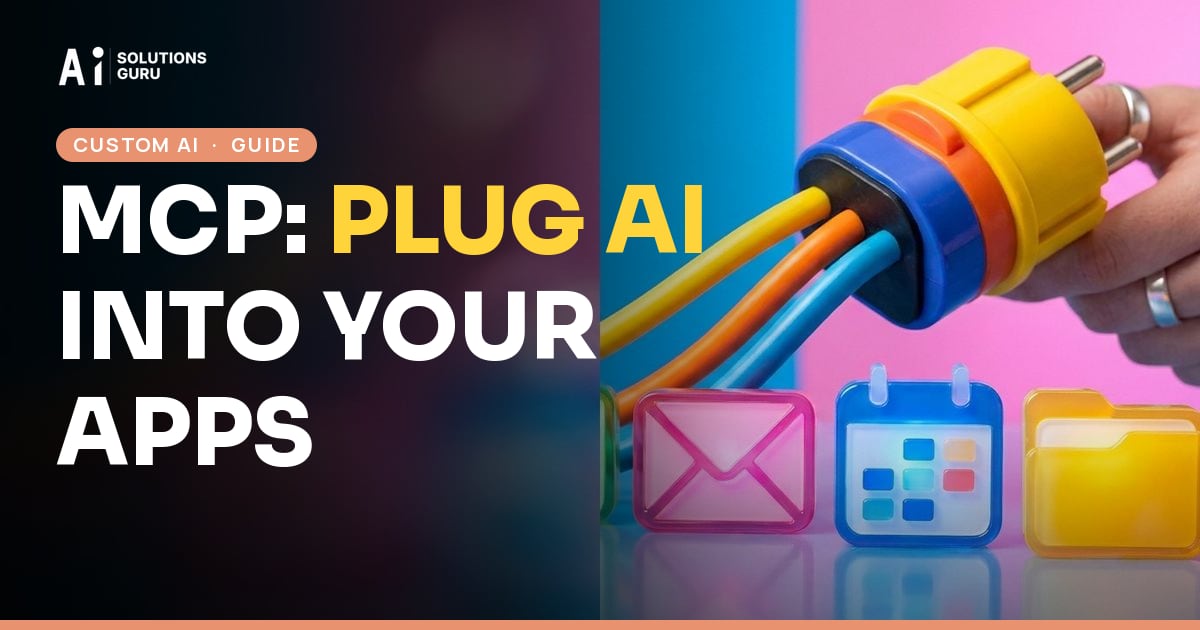
MCP stands for Model Context Protocol. It is an open standard, introduced by Anthropic in late 2024 and since adopted across the major AI assistants, that defines one common way for an assistant to connect to other software. Each app publishes an MCP server, a kind of adapter, and any assistant that speaks MCP can use it. Think of it as USB for AI: one plug shape, many devices.
What it can do for a small business
Once your assistant is connected to the tools you use, you can ask for real work in plain words:
- “Summarize every email from new leads this week and draft a reply to each.”
- “What is on my calendar tomorrow, and is anything missing to prepare?”
- “Find the clients in the CRM who got a quote last month and never replied.”
- “Pull the totals from these three invoices in Drive and put them in a table.”
- “Create a task for each item we agreed in this meeting transcript.”
The assistant reads what it needs, does the work, and shows you the result before anything important is sent or changed.
How to start, in four steps
1. Pick the assistant you already use. ChatGPT, Claude and Gemini all offer connectors to popular apps in their settings, often called connectors, apps or integrations.
2. Connect one or two tools you open every day. Email and calendar are the best first pair, because almost every question about your week involves them. Then your file storage, then your CRM.
3. Start read only where you can. Let the assistant look and summarize before you let it send, create or delete. Add write access one tool at a time, once you trust how it behaves.
4. Make it a habit. Start each morning with “What needs my attention today?” and end the week with “What did we promise clients this week that is not done yet?” You will quickly find the questions that save you the most time.
Safety rules that matter
- Least access. Give each connector only the permissions the task needs.
- Trusted sources. Use connectors published by the app itself or by your assistant’s provider, the same way you would only install a trusted browser extension.
- Confirm before acting. Keep the setting that asks you before the assistant sends an email or changes a record.
- Mind client data. Do not connect accounts holding information you are not permitted to share with an outside service, and check your industry’s rules first.
When a custom MCP server makes sense
If your business runs on its own software, such as a booking system, a quoting tool or an internal database, a developer can build an MCP server for it. Then your assistant, or an AI agent, can look up a job, check a status or create a quote in your own system, in plain words, with the permissions you define. This is often the fastest way to give a whole team an assistant that truly knows the business.
The short version
MCP connects AI assistants to the apps you already use, so they work with your real information instead of guessing. Connect email and calendar first, keep it read only at the start, grant the least access a task needs, and grow from there.
Words in this guide